Assign Multiple Sections for Housekeeping Staff
Stay is enhanced to allow users to assign multiple housekeeping sections to individual staff members and teams. Rooms assigned to a housekeeping section are considered as Sectioned, while rooms that have not been assigned to any section are considered as Unsectioned.
The assigned sections are considered during housekeeping auto-assignment to help determine which services can be assigned to each staff member.
Staff Configuration
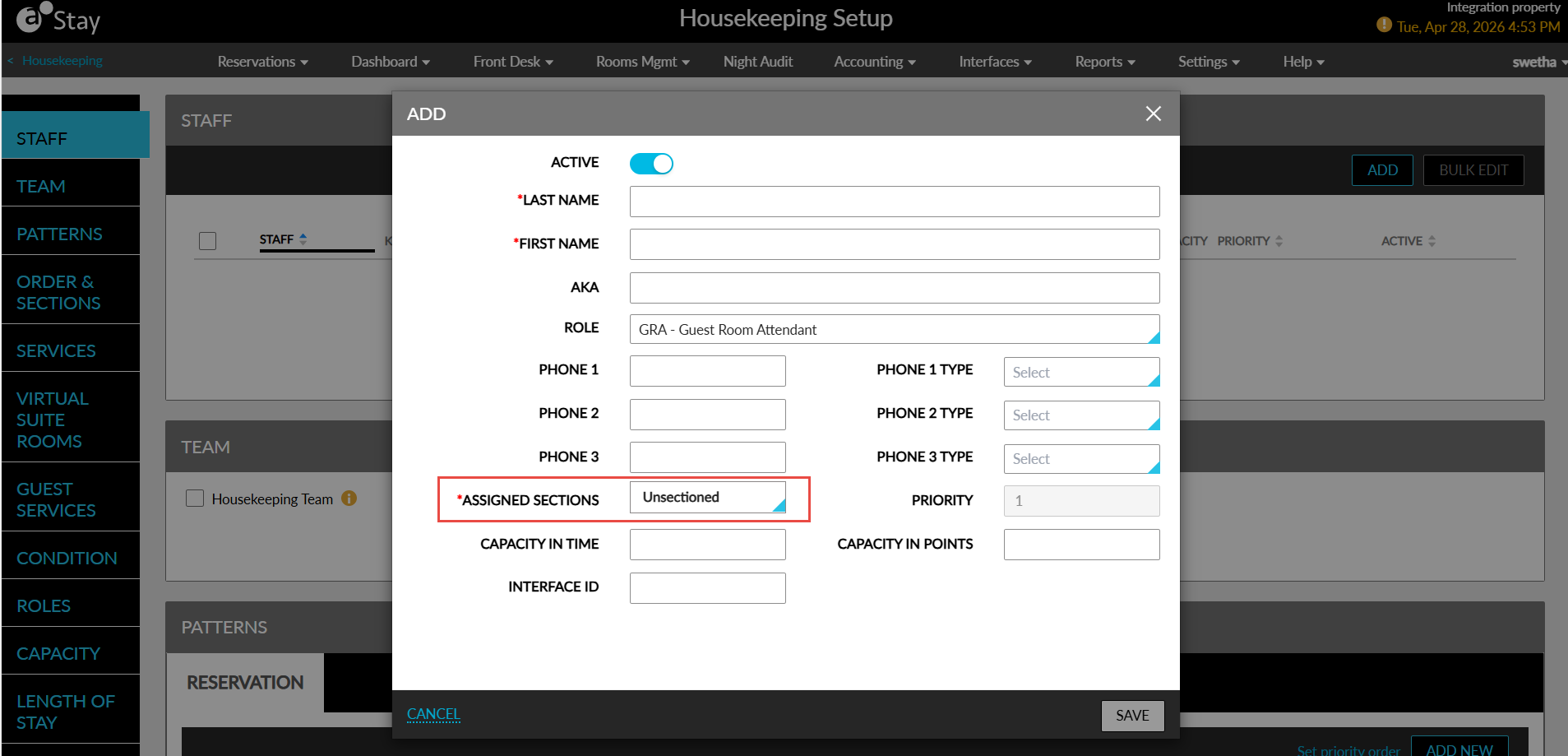
In the Staff section of the Housekeeping Setup screen (Settings ➜ Housekeeping), the Assigned Sections field in the Add pop-up screen has been modified from a single-select drop-down list to a multi-select drop-down list. Users can now assign multiple sections to a staff member.
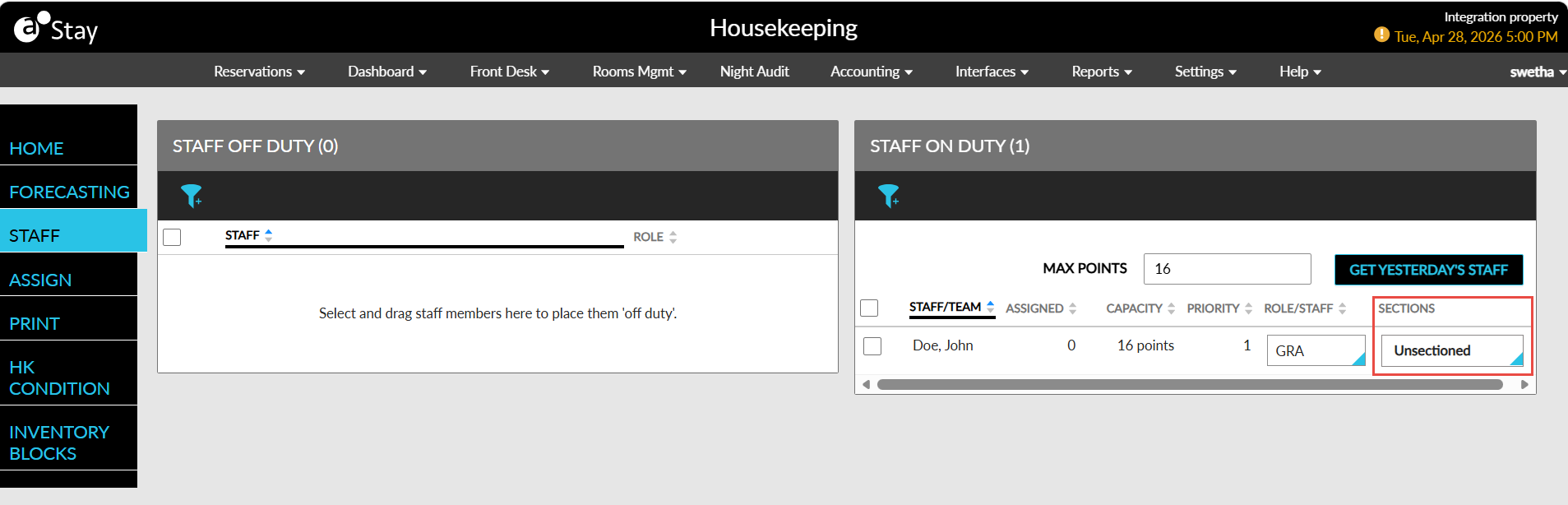
Staff on Duty
A new column, Section, has been added to the Staff on Duty table in the Housekeeping screen (Rooms Mgmt ➜ Housekeeping). The Section field is a multi-select drop-down list. The sections configured for each staff member are selected by default. Users can update the selected sections when marking a staff member as on duty for the day.
Changes made while marking staff as on duty do not update the sections saved in the staff configuration. At least one section must be selected for each staff member. After a team is created, the sections configured for each staff member in the team are selected by default. Users can update these sections when marking the team members as on duty for the day.
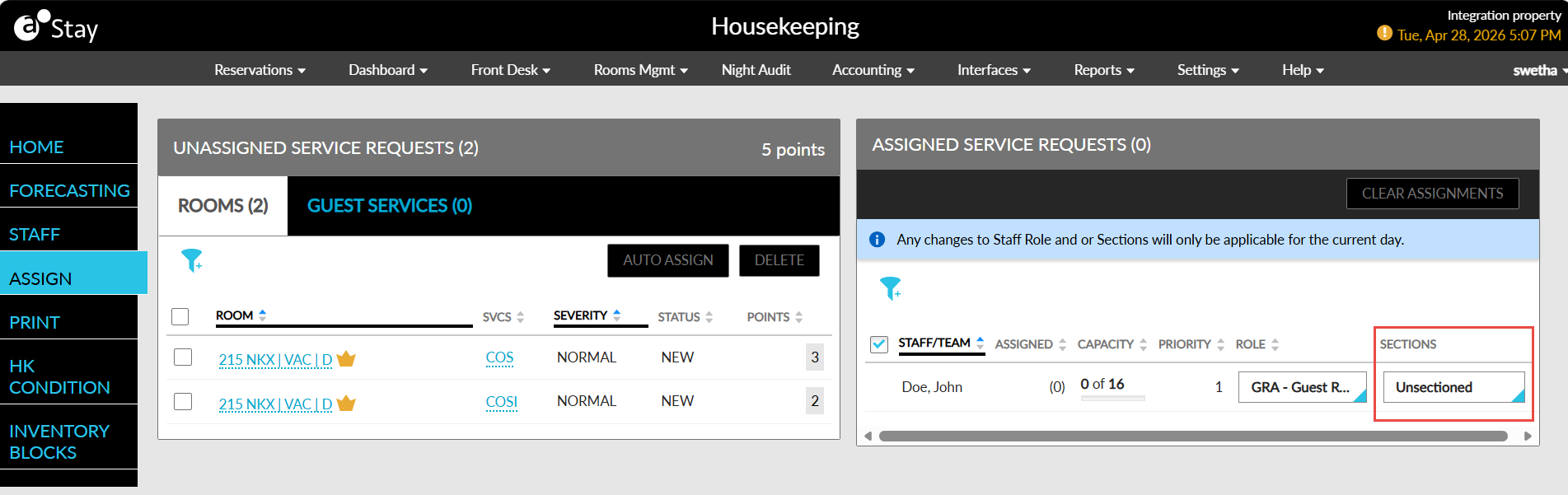
Assign Section
A new column, Section, has been added to the Assigned Service Request table in the Housekeeping screen (Rooms Mgmt ➜ Housekeeping). The Section field is a multi-select drop-down list. The sections selected for the staff member in Staff on Duty section are populated by default. Users can update the sections while assigning services.
Changes made to the sections during service assignment do not update the sections saved in the staff configuration. Changes made during service assignment are reflected in Staff on Duty section, and changes made in the Staff on Duty section are reflected during service assignment. At least one section must be selected for each staff member. For teams, the sections assigned to staff members in the Staff section are considered during auto-assignment.
Staff members assigned to specific sections receive rooms only from their selected sections. Staff members assigned to the un-sectioned section receive un-sectioned rooms first. When no un-sectioned rooms are available, or if the staff member has remaining capacity after receiving un-sectioned rooms, rooms from other sections are assigned based on proximity and capacity rules.
Service Assignment Progress and Results
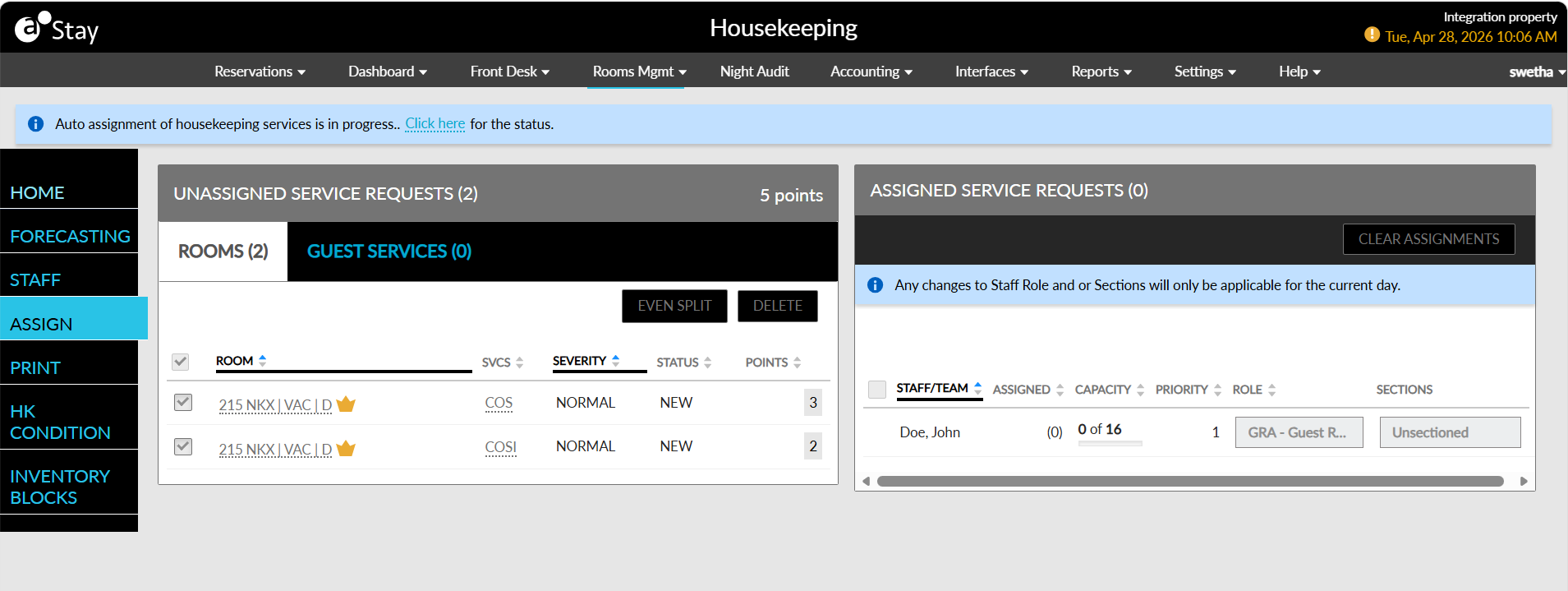
When users select housekeeping services and start auto-assignment in the Unassigned Service Requests section (Rooms Mgmt ➜ Assign ➜ Unassigned Service Requests ➜ Auto Assign), the following message is displayed as a banner in the Auto Assign Service Requests pop-up screen: Auto Assignment of Housekeeping Services is in Progress.
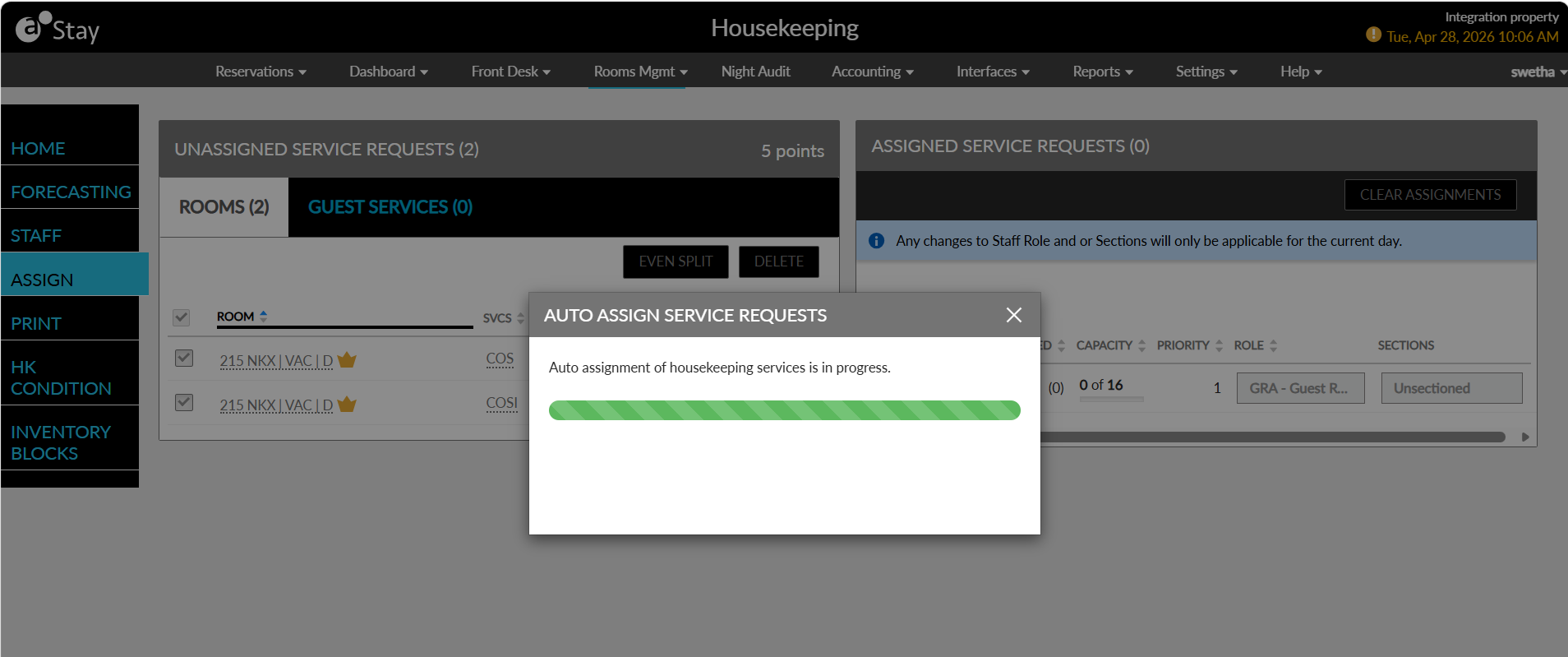
A new Auto Assign Type option provides the following choices for auto assignment of services:
-
Split Evenly
-
Staff Priority
Users can close the pop-up screen while auto-assignment is in progress. After the pop-up screen is closed, a progress bar displays the same message.
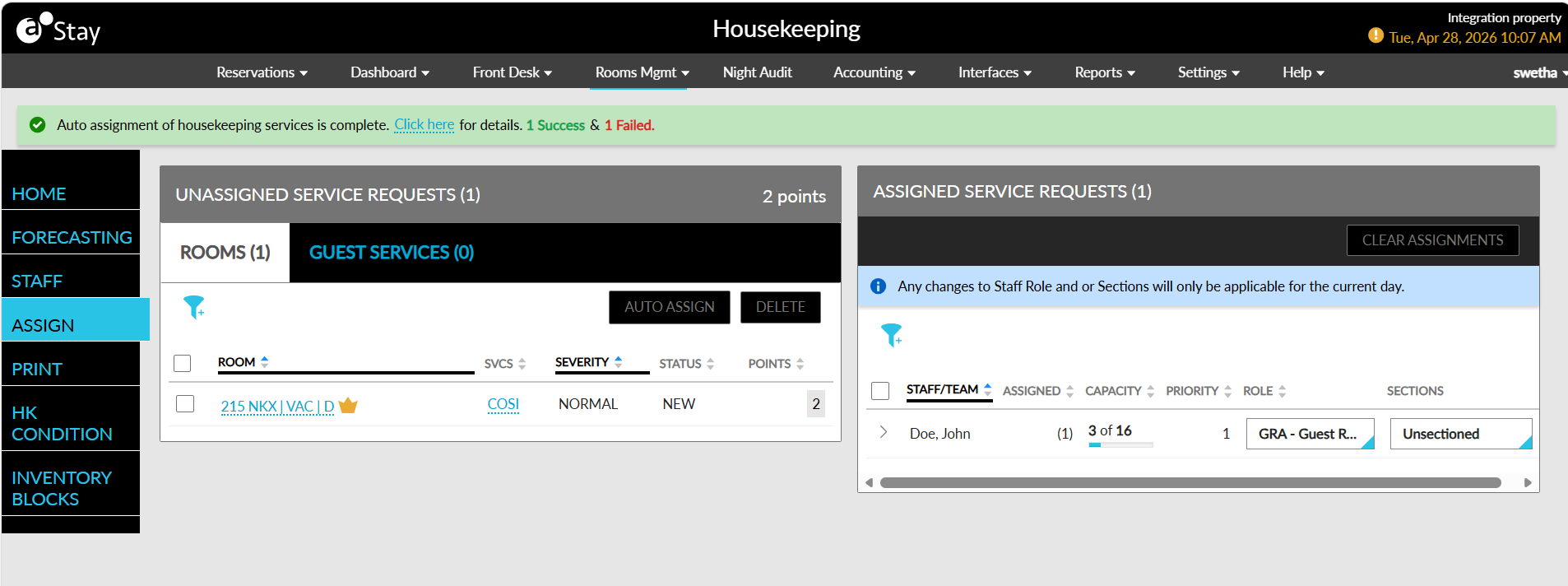
When auto-assignment is completed, a success message and a results link are displayed. Selecting the link opens the Results pop-up screen that lists successfully assigned and failed services in separate sections.
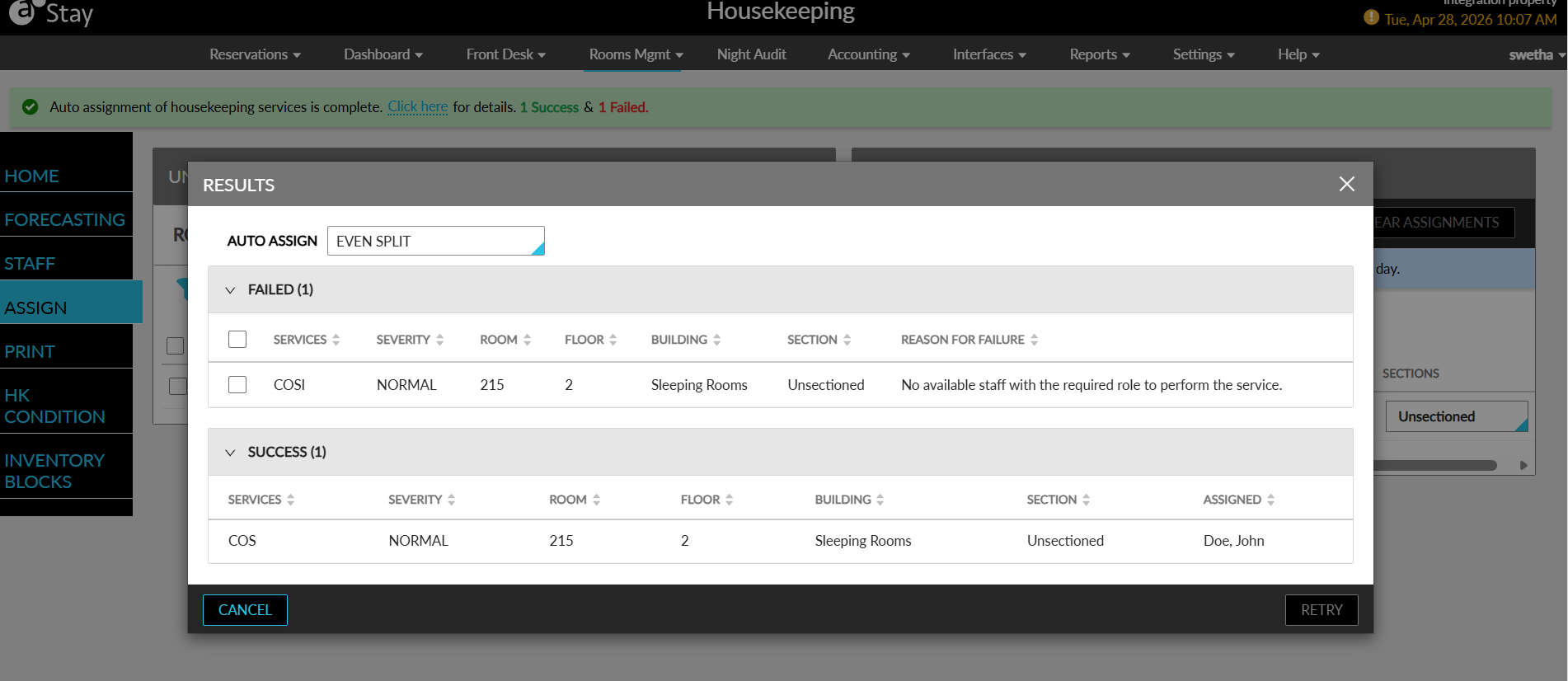
The following details are displayed in the Results pop-up screen:
-
Room
-
Section
-
Floor
-
Building
-
Services
-
Severity
-
Assigned
-
Reason for Failure
The Assigned column is displayed in the successful assignments section and displays the assigned staff member or team. The Reason for Failure column is displayed only in the failed assignments section and displays one of the following reasons:
-
Staff capacity is full
-
System error
-
Room section does not match staff section
-
No staff available for the room's assigned section
-
No available staff with the required role to perform the service
The results bar remains available until date roll. Each new auto-assignment process replaces the results from the previous process.
Retry Failed Assignments
After auto-assignment is completed, users can retry the failed services from the Results pop-up screen. Users must select the failed services, choose an auto-assignment type, and click Retry. Only the selected failed services are processed again. After the retry is completed, the latest results are displayed with the successfully assigned and failed services.
Auto-Assignment Logic for Services
Housekeeping services can be automatically assigned using the following methods:
-
Staff Priority: The room order configured within each section determines the assignment priority. Rooms are assigned based on this order, and staff members with higher priority receive rooms first.
-
Even Split: Unassigned services are distributed evenly among active staff based on their role and the requested service type. Room order is not considered.
Important Points
-
Services are first filtered by role. Services are assigned to the appropriate roles only.
-
Each staff member must have at least one section selected at the time of assignment.
-
Staff members assigned to sectioned room receive only rooms belonging to their selected sections.
-
Staff members assigned to the un-sectioned rooms receive services for un-sectioned rooms first.
-
When no un-sectioned rooms are available and the staff member has remaining capacity, services from sectioned rooms are assigned based on the section creation order.
-
Sectioned rooms are assigned to un-sectioned staff only when no un-sectioned rooms are available or the staff member has remaining capacity.
-
Rooms are grouped first by building, then by floor, and then by proximity.
-
Rooms marked as nearby or connected are given priority when clusters are created.
-
Rooms on the same floor are assigned together whenever possible. Assignment moves to another floor only when no rooms remain available on the current floor.
-
Assignments across buildings are avoided unless no rooms remain available in the current building and the staff member still has capacity.
-
Services continue to be added to a cluster until the staff member reaches capacity or no additional services are available.
-
Rooms with available housekeeping services are dynamically grouped for assignment based on staff capacity and the configured section rules.
-
Services that cannot be assigned because of capacity, role, or section restrictions are marked as failed and included in the auto-assignment results.